
Updating FlightGear#
Added in version 2024.1.
Note
The following applies only to minor updates, such as 2024.1.5 to 2024.1.6. It does NOT apply to major updates such as 2020.3.19 to 2024.1.1, as these can co-exist and are treated as separate installs.
Keeping FlightGear up-to-date is easier than it used to be, but it also works differently from older releases. 2024.1 brought with it the ability to update only the files that have changed, significantly reducing update time and storage required.
Downloading the Update#
When an update is released, you will be able to download from the download section of the FlightGear Website. The same file that you download to install FlightGear for the first time is used to update.
Installing the Update#
Caution
Previous versions of FlightGear on Windows installed the data files to
C:\Program Files\FlightGear\data. 2024.1 moved the location of
these files to a location within the user profile, typically
%USERPROFILE%\FlightGear\Downloads\fgdata_VERSION. It is
essential that you do not install the data files to Program Files, as the
launcher will not be able to keep these up to date since Windows does not
allow programs to write to this location.
Install the file you have just downloaded in the usual way for your operating system. This will update the core applications of FlightGear, and any other dependencies bundled with it.
Open FlightGear in your usual way. You will be presented with a screen which looks something like this
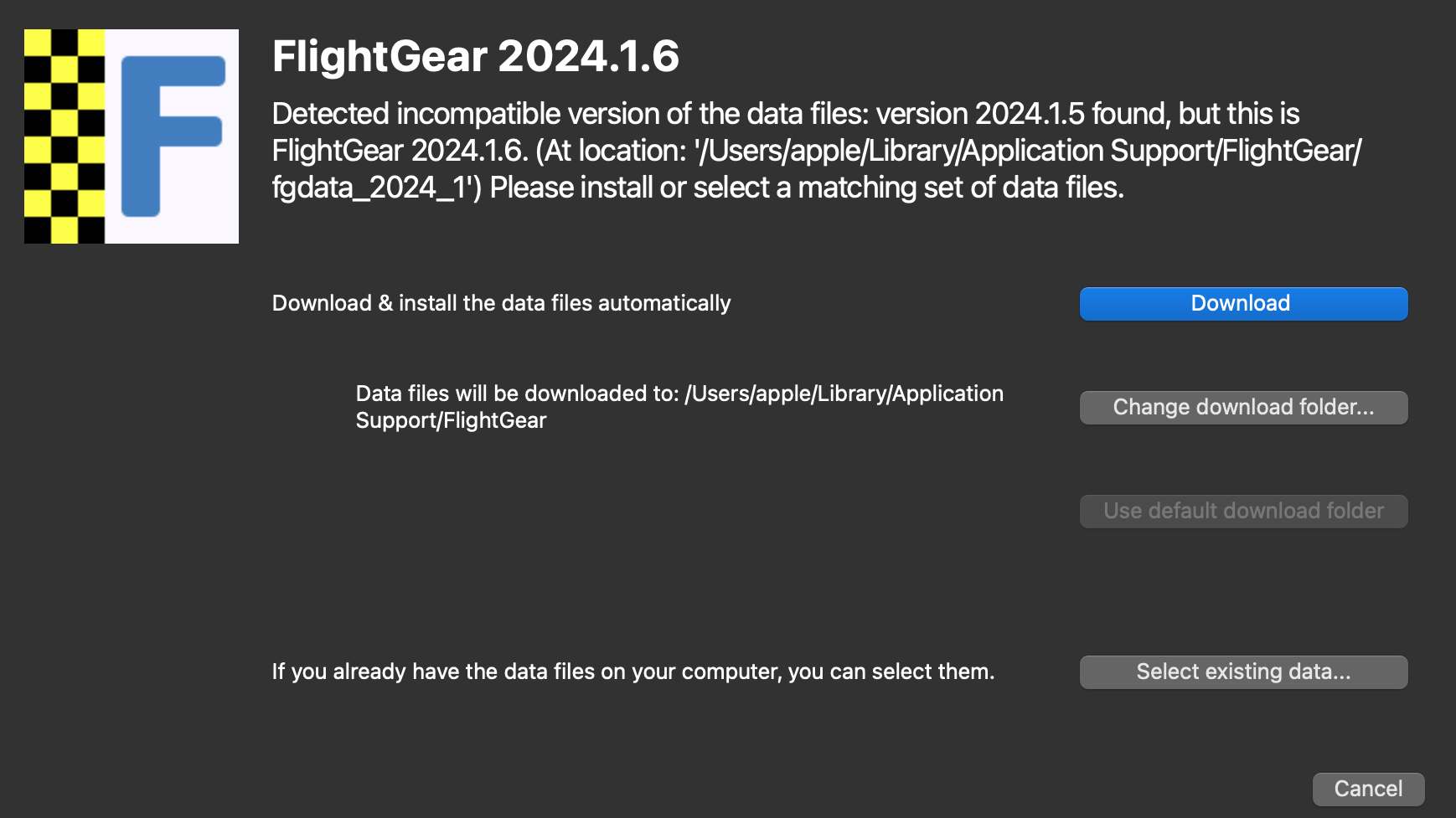
FlightGear Launcher detecting outdated data files#
Once you hit the download button, FlightGear will check, download and verify all files which have been updated by the new version. It will only modify what has been changed in the update, however a few other files such as shared models may also be modified.
That’s it! FlightGear should now be up to date.